how i rip cds
In my campaign to remove myself from the cloud, the time has come for me to face the music front. Music faces unique challenges compared to movies - you need to manage metadata, large amounts of files, and confusing versions and releases of albums. But in the end, having all your music in one place is worth it.
What you'll need:
- Computer with a bit of storage
- CD/DVD Drive (either in computer or USB)
- CDs!
sections
Obtaining CDs - Ripping - File Organization - Sidenote - Listening
Obtaining CDs
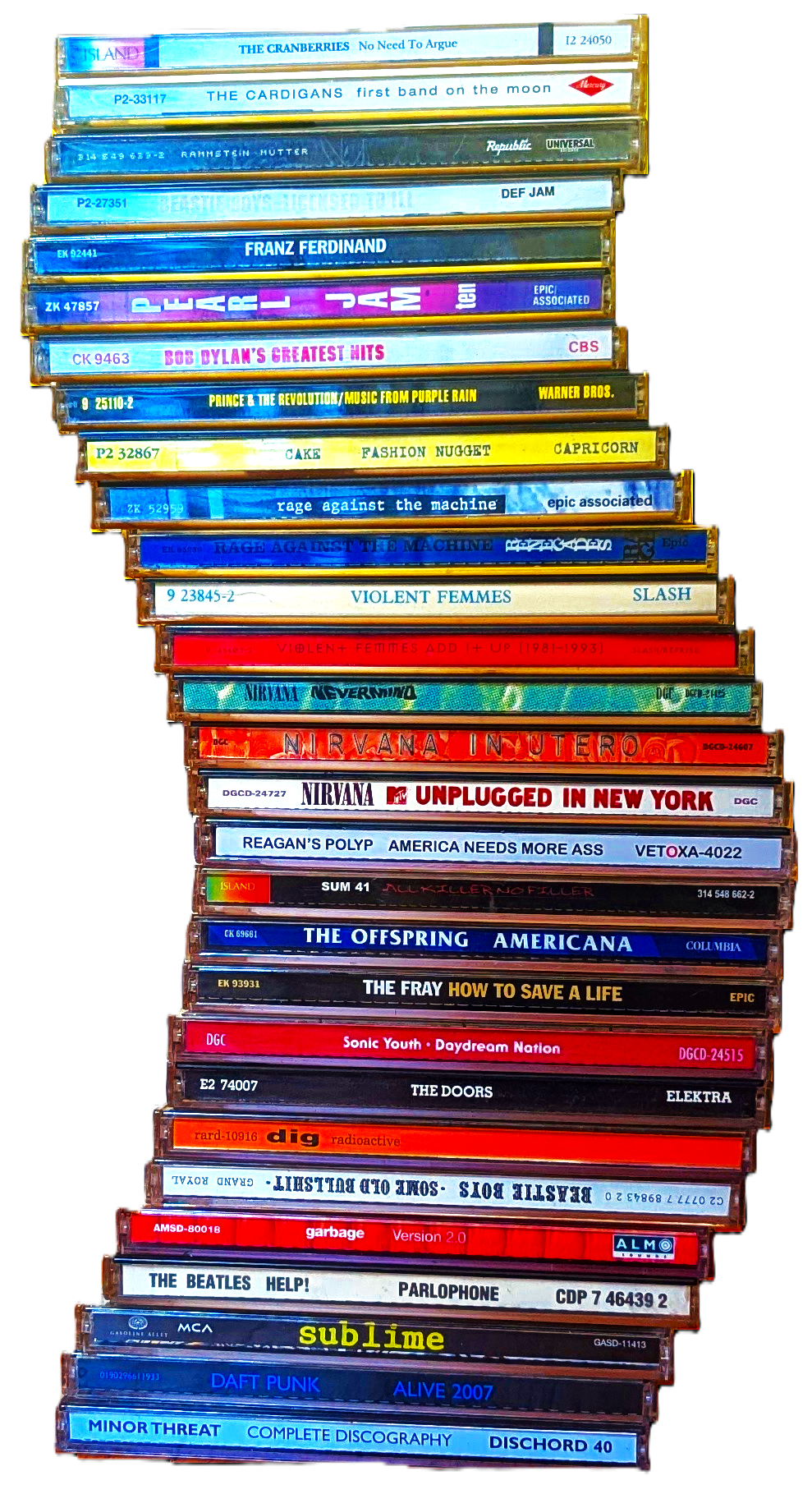
Nowadays, you can find CDs almost everywhere for cheap. I'll use this space to proselytize that you should avoid buying CDs to rip - ask to borrow friends or family or check them out from the library or something. Ask what their favorite album is, what their favorite band is. Add some community to your listening experience, the clutches of algorithms are what were trying to escape here anyway.
Heres that as a list:
- Your own collection
- Borrowed CDs from your friends' and families' collections
- CDs from your local library
- Cheap CDs from thrift stores
Ripping CDs using Exact Audio Copy
For ripping, I use Exact Audio Copy (EAC) which has worked great so far:
- Load the disk into your disk drive and open EAC. The program should automatically detect the disk
- Navigate to Database, then Get CD Information From and click Remote Metadata Provider. Choose the right version of your CD - this will automatically name each of the files and find an album cover.
- Extract the music by selecting Copy Selected Track (Uncompressed). You can also extract them compressed, but music files are small enough that I wouldn't worry about it unless you are under some major constraints.
- Wait 3-10 minutes for your album to download. You did it! Yippee!
Organizing your music files
I use a pretty simple organization system for my files - band, album, track:
- /Music/Band/Band - Album (Year)/Band - Album - ## Track.wav
To organize my the files like this (as well as add that very important metadata), I use MusicBrainz Picard. This allows me to edit metadata manually, as well as automatically fill out metadata for albums.
- Add your folder of music and click cluster. This will cluster an album together, but we still need to add metadata.
- Make a profile for how you want your files to be named (Options -> Open File Naming Script Editor). I like the format [Band Name - Album Title - ## Track Name], but you can do whatever you want.
- If you still have your disk, you can use the Lookup CD function to find the album, and just drag your files into the album section. Clean it up by dragging the unrecognized songs into the right slots and boom! You have the organized files!
- If you don't have your disk, select the clustered files and use the Scan tool. This can be a little iffy (especially if the album is a compilation album) but if some tracks go into a random album, you can always drag them into the correct one.
- Make sure to save each album!
sidenote - are cds the best physical music media?
I love CDs. I like how you can skip to the song you want, I like how they are small enough to fit into your hand comfortably, but still large enough the cover art can have some kick. In terms of user experience, they are by far my favorite form of physical music media.
... but all that goes out the window as soon as I see a beautiful cassette. Oh, how I love the physicality of a cassette. How thick it is, how sturdy it feels, how it fits into your hand, how you can read the spine without straining your eyes. Using it to listen to music sucks - without a high end machine, you cant skip tracks, they are susceptible to wobble from the belts, and can get all tangled up I hear - but oh my, what a beauty they are to hold.
And vinyls are cool too, I guess. Frankly I only buy them as wall art.
How to listen?
Now that you had all that fun ripping and organizing, I guess its time to actually listen to your music! If you want, you can just click on the files you want and listen with the built in music player, but I feel like most people will want a little more than that. Here are some of the music players I looked at (all for windows... linux may be coming soon >:)
Ordered from how most file viewer like to most spotify like:
- VLC Media Player (open source), very much just a file viewer. Allows you to make playlists, and not much else.
- foobar2000 (freeware), too technical for my taste, however a great option
- AIMP (freeware), in my opinion perfect step up from iTunes. Also has an andriod app.
- Musicbee (freeware), what I personally use. It works perfectly!
- Nora (open source), the closest I could find to a spotify-esque UI. Great if you dont want to give up the modern feel.

conclusion
I've held off from getting off music streaming for so long because, unlike movies, music streaming is pretty good. You can find most everything you want to listen too, it is crazy convenient to always have access to your music, and there is just so much music that downloading it yourself would just be a pain. But what kind of life is that! How can you truly appreciate what you have without working for it? Just like patching your shirt or building your shelf, creating your own music library means that every time you open it, you will not only have appreciation for it, but also for yourself. And I like that more than the convenience of streaming.
- keeperofhoney, December 2025